
© 2026 InterSystems Corporation. All rights reserved.Privacy & TermsGuaranteeSection 508Contest Terms


interface-explorer 

Community Project
This project is maintained by its author and is not officially supported by InterSystems. For technical support, please contact the project developer.
This project is maintained by its author and is not officially supported by InterSystems. For technical support, please contact the project developer.
5
1 reviews
1
Awards
204
Views
1
IPM installs
 0
0 Add to bundle
Details
Releases (1)
Reviews (1)
Awards (1)
Issues
Search/Filter Interfaces and Connections
What's new in this version
Initial Release
Interface Explorer
Search and Filter Health Connect Interfaces and Connections!
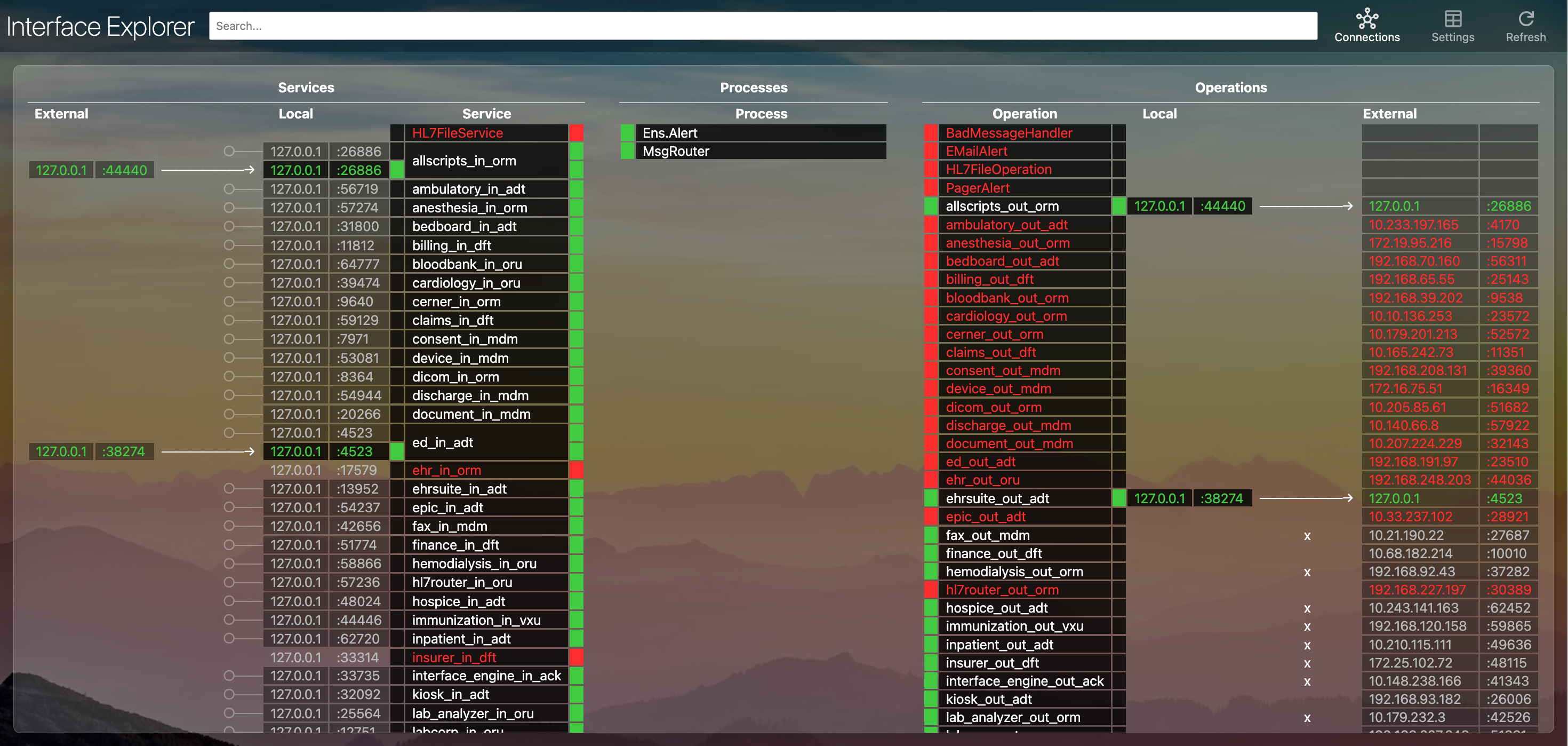
Have you ever needed to view various settings across all interfaces at once? Have you ever needed to search or visulize current interface connections? If so, give Interface Explorer a try!
InterSystems "Bringing Ideas to Reality" Contest 2025
This application was originally created/published for the InterSystems "Bringing Ideas to Reality" Contest 2025.
Implemented Idea:
Description
Interface Explorer is an application for InterSystems Health Connect that allows you to search and filter through all of your interfaces and their associated settings and connections.
View Settings Across Your Interfaces
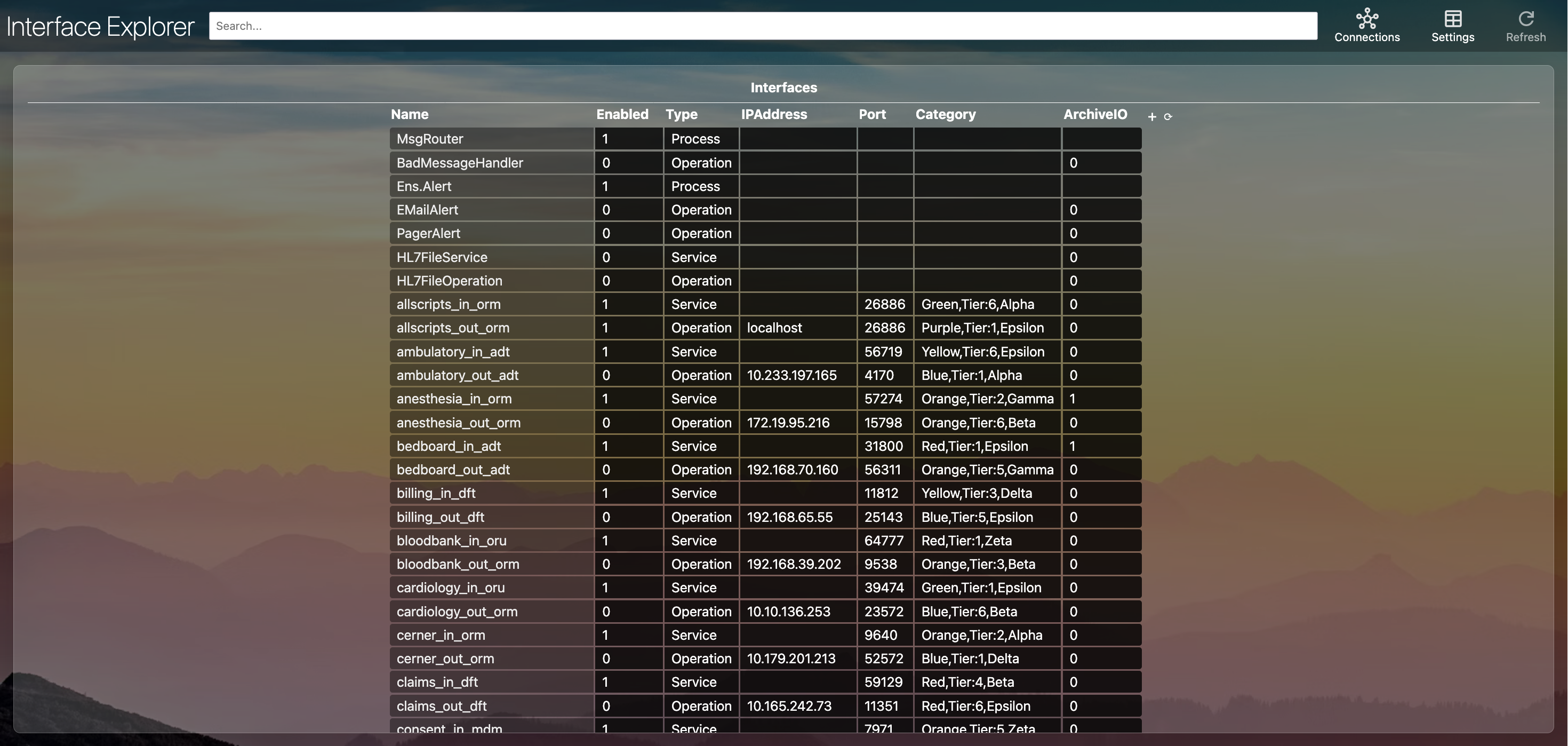
If your production has grown to a large number of interfaces, it can sometimes be difficult to evaluate the various settings and values spread across your interfaces. This is where the Settings view of Interface Explorer can help. You can add columns for any interface setting currently set in your production (IPAddress, Port, SSLConfig, ArchiveIO, etc.):
Filter by Setting Value
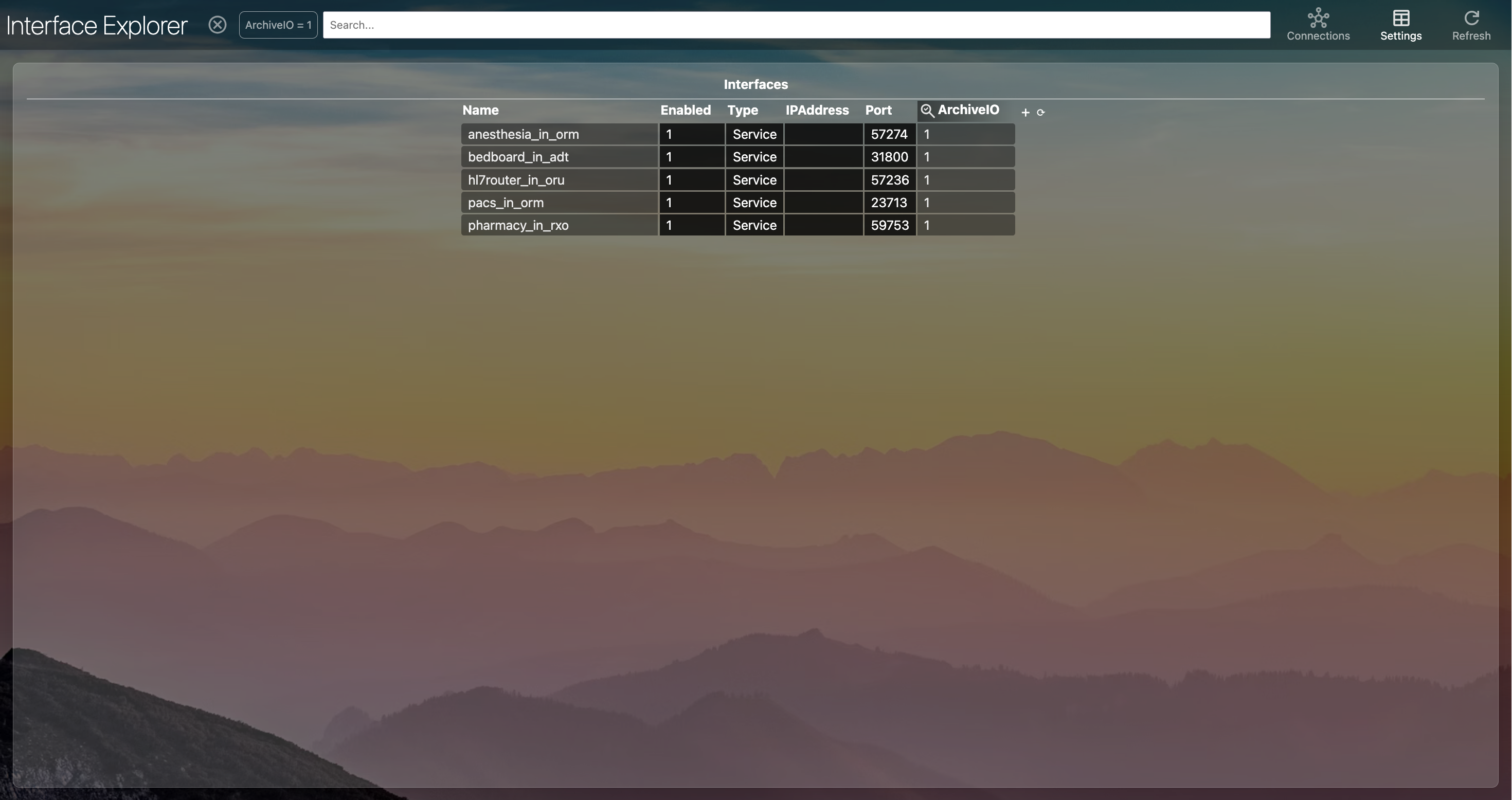
You can also filter interfaces by entering multiple criteria and setting values in the search bar:
View Established Connection Information
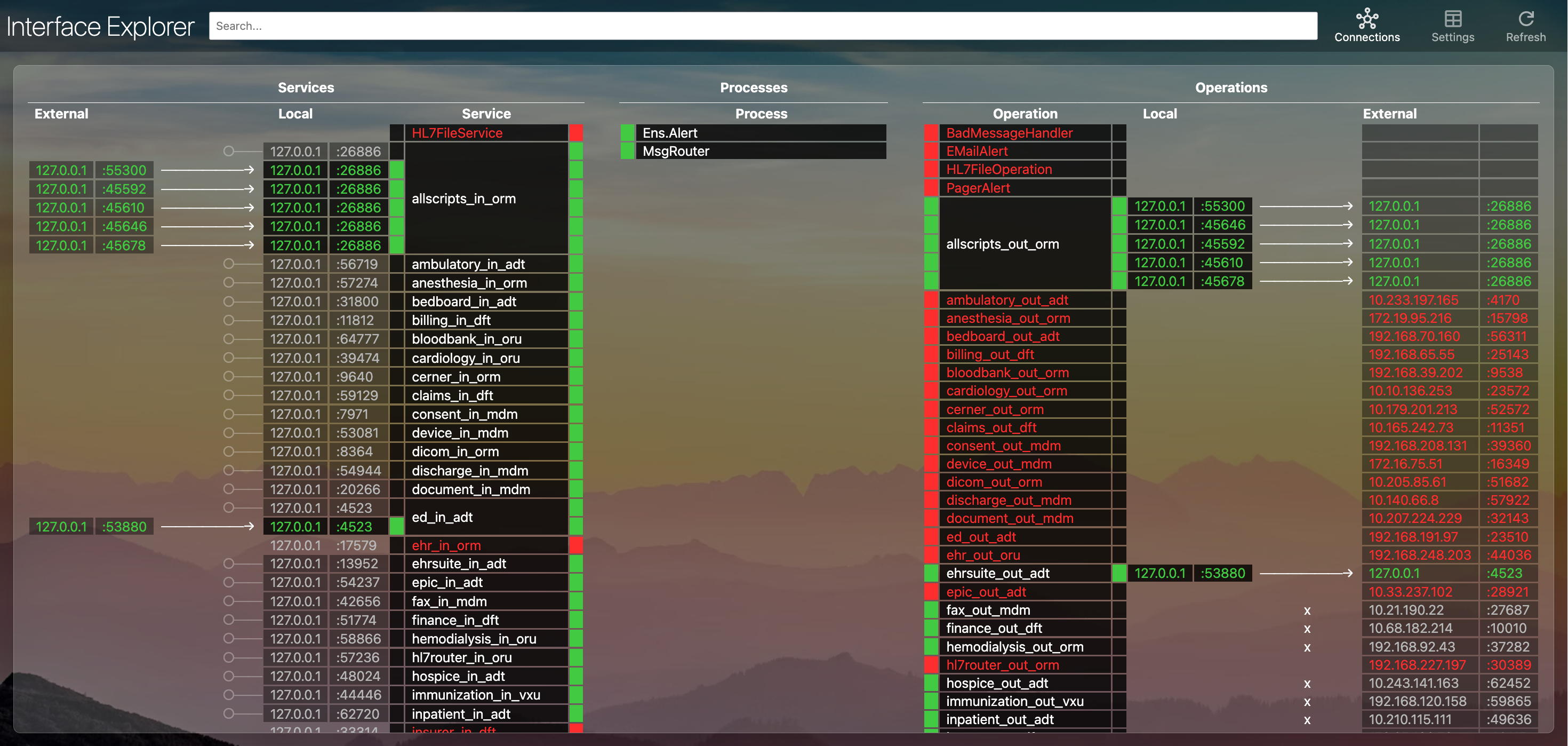
Interface Explorer will also allow you to view and monitor the many connections that your interfaces may be making to external systems. By visiting the Connections view, you can see the status (Established, Listening, etc.) of all connections tied to your interfaces. If a connection is established, you can view both your server's connection information and the information of the third-party to which your interface is connecting. You can even see if an interface has made more than one connection.
Prerequisites
- IRIS 2022.1+ (for Embedded Python support)
- Python 3 installed on the system
Installation
There are several methods for installing this application:
- Docker
- Install the IPM/ZPM package
- Manually Install as an IRIS WSGI application
Option 1: Docker
If you prefer, you can demo Interface Explorer with docker.
First, download/clone the repo to your local computer:
git clone https://github.com/jamerfort/interface-explorer.git
Build and connect to your instance:
cd ./interface-explorer

# Rebuild/start the image
docker compose up --build -d
Access the demo at http://localhost:32800/interface-explorer/
Stop your instance:
# Stop your containers
docker compose down
Option 2: Install the IPM/ZPM package
Use zpm to install the interface-explorer package:
USER>zpm

=============================================================================
|| Welcome to the Package Manager Shell (ZPM). version 0.7.4               ||
|| Enter q/quit to exit the shell. Enter ?/help to view available commands ||
|| Current registry https://pm.community.intersystems.com                  ||
=============================================================================
zpm:USER>install interface-explorer
Access the application at https://your-server/interface-explorer/.
Option 3: Manually Install as an IRIS WSGI application
First, download/clone the repo:
git clone https://github.com/jamerfort/interface-explorer.git
Install the required python modules:
python3 -m pip install --target /InterSystems/IRIS/mgr/python -r interface-explorer/requirements.txt
Navigate to System Adminstration > Security > Applications > Web Applications in IRIS/Health Connect. Click Create New Web Application.
Fill in the following fields:
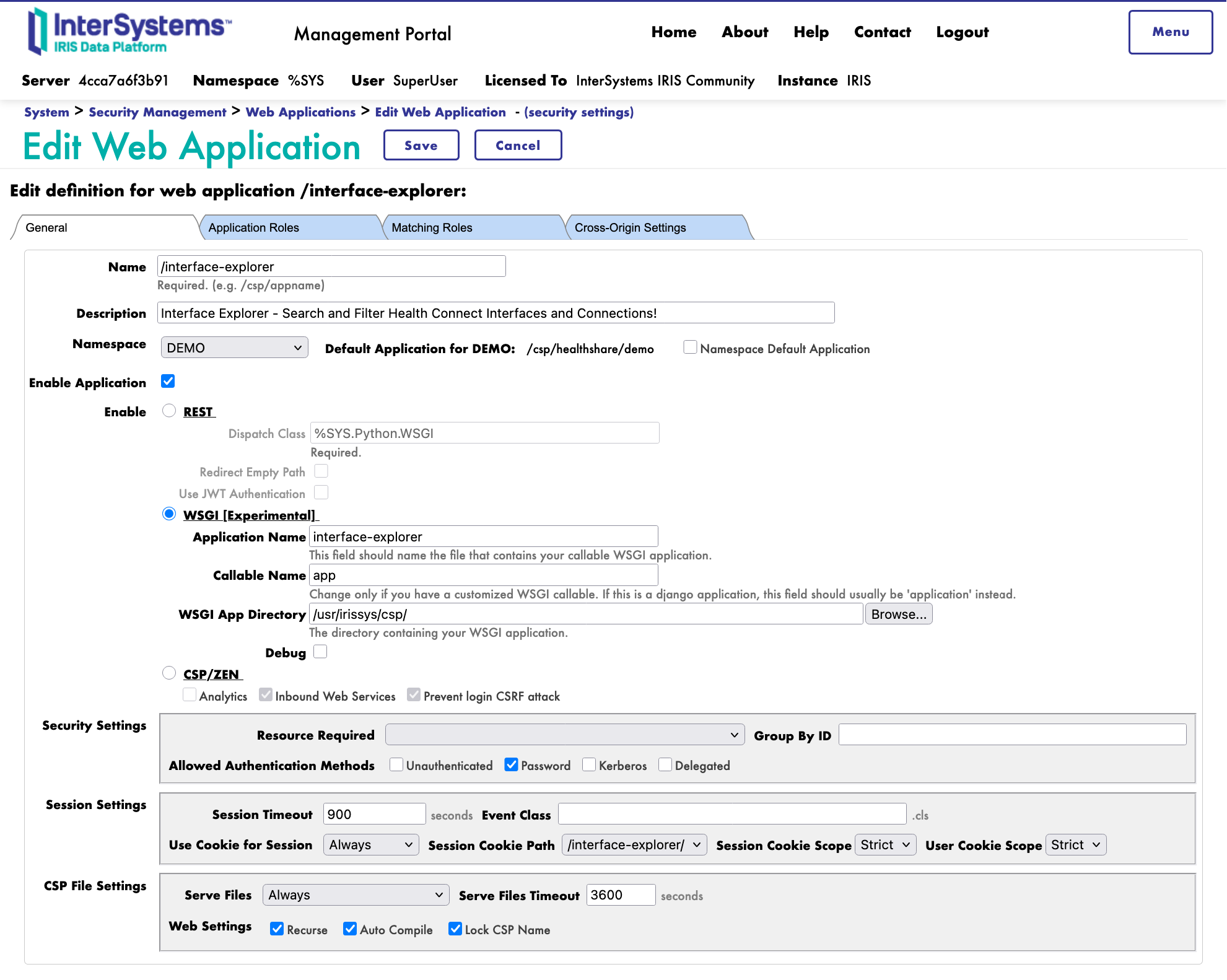
Set any additional parameters as desired.
Click Save button.
Usage
Changing the View
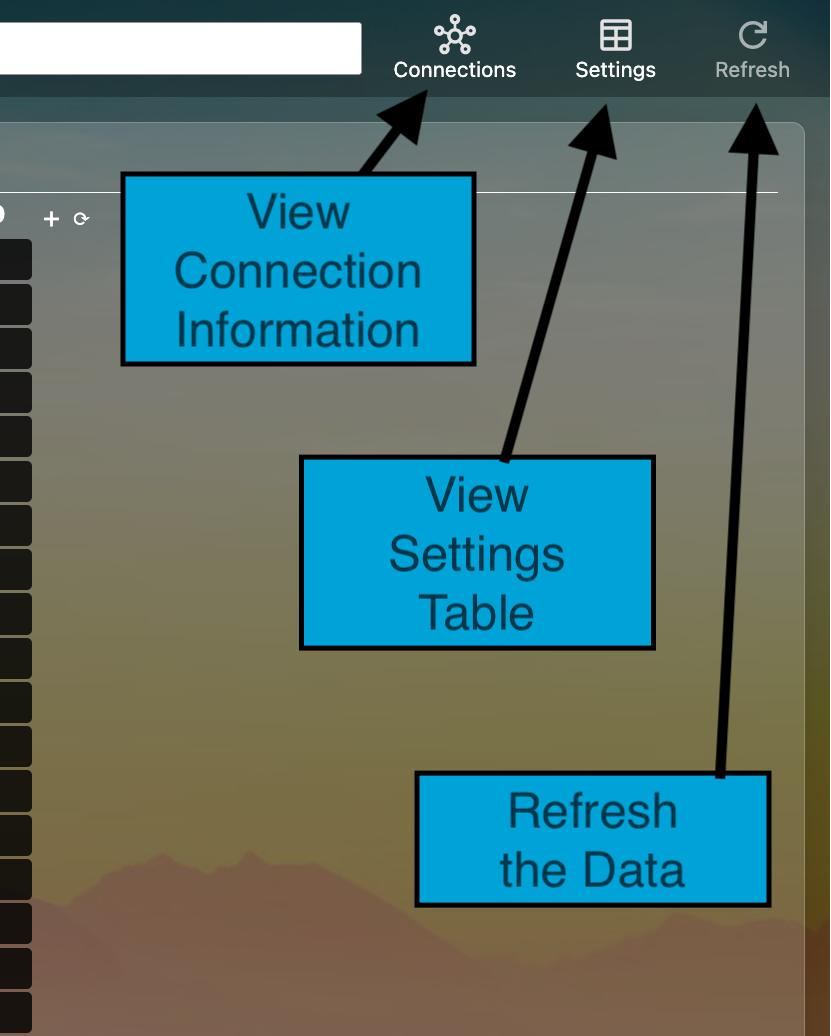
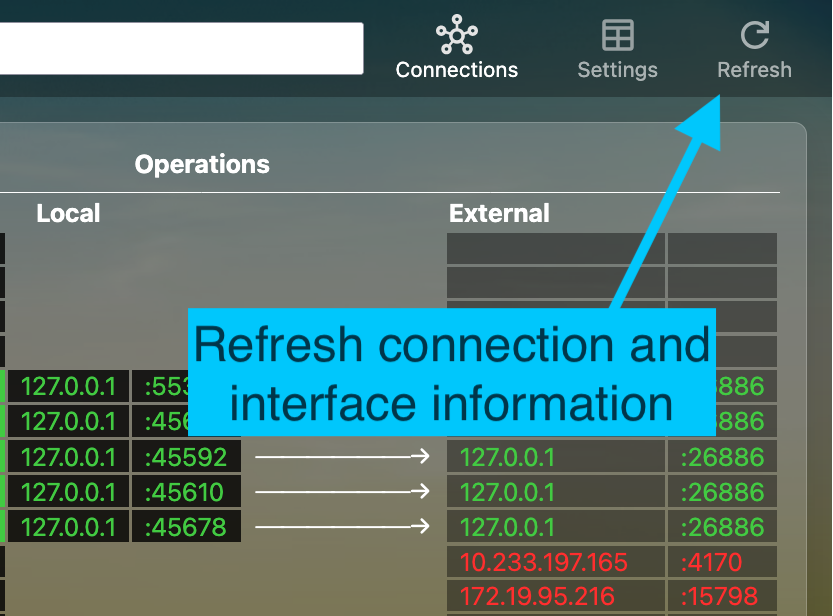
To switch the view between the Settings-Table view and the Connections view, click the Connections and Settings buttons in the top right of the page. Also, the Refresh button can be used to refresh the data on the page.
Displaying Settings as Columns
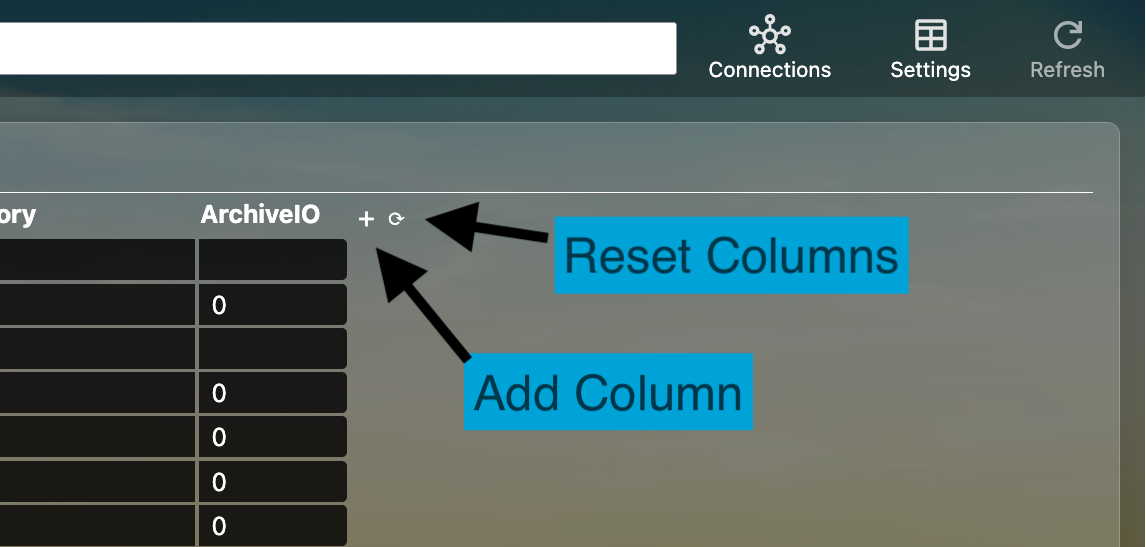
On the Settings view, you can add any interface setting as a column to the table. These columns will continue to display in all future visits to this page. To reset the columns displayed, click the Reset button to the far-right of the table header.
Searching/Filtering Settings
While you can add columns directly to your view (while on the Settigs view), using the Search Bar will allow you to dynamically add columns
based on settings that match the query provided to the Search Bar. See Settings Queries below for details on searching.
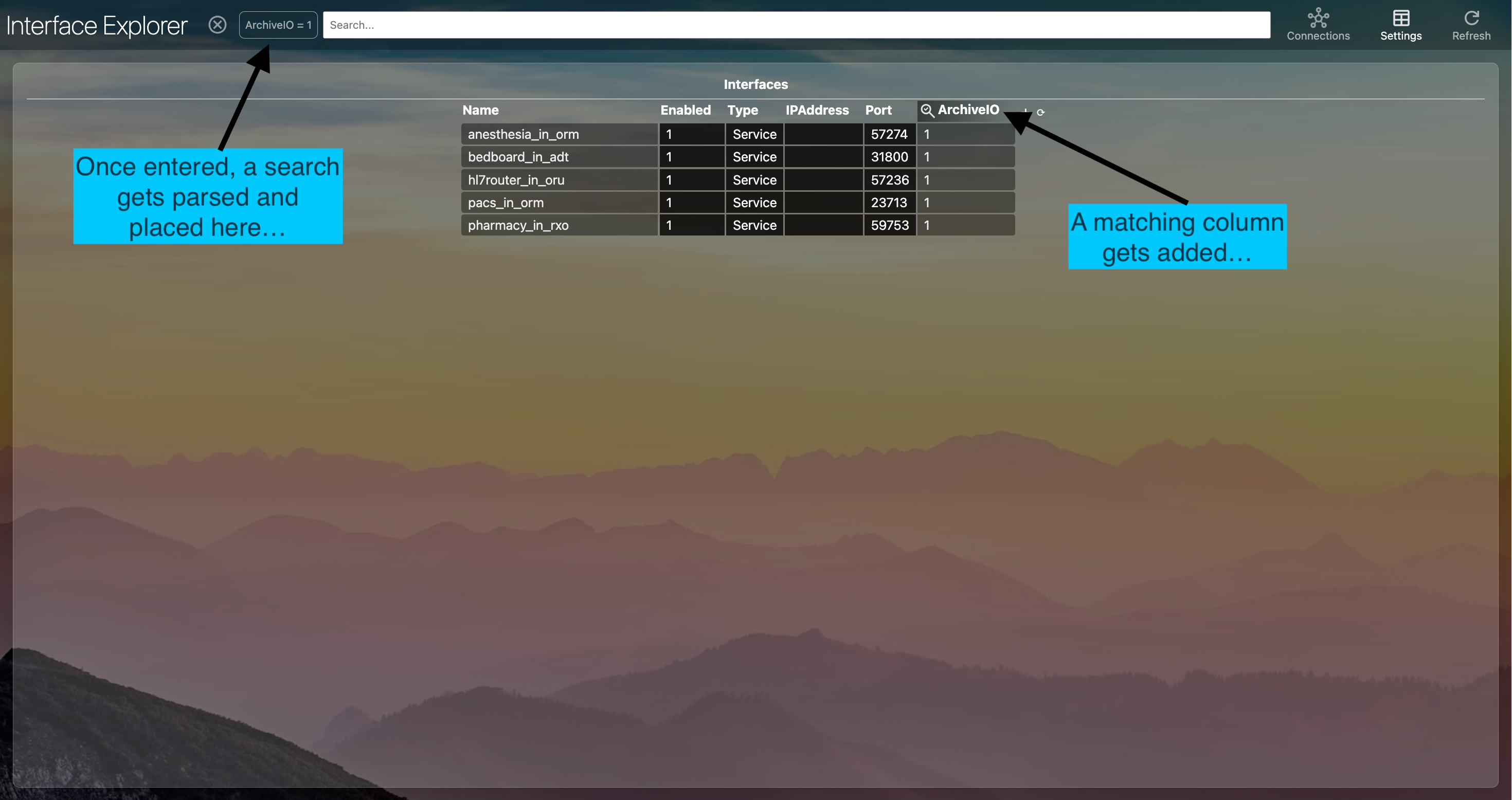
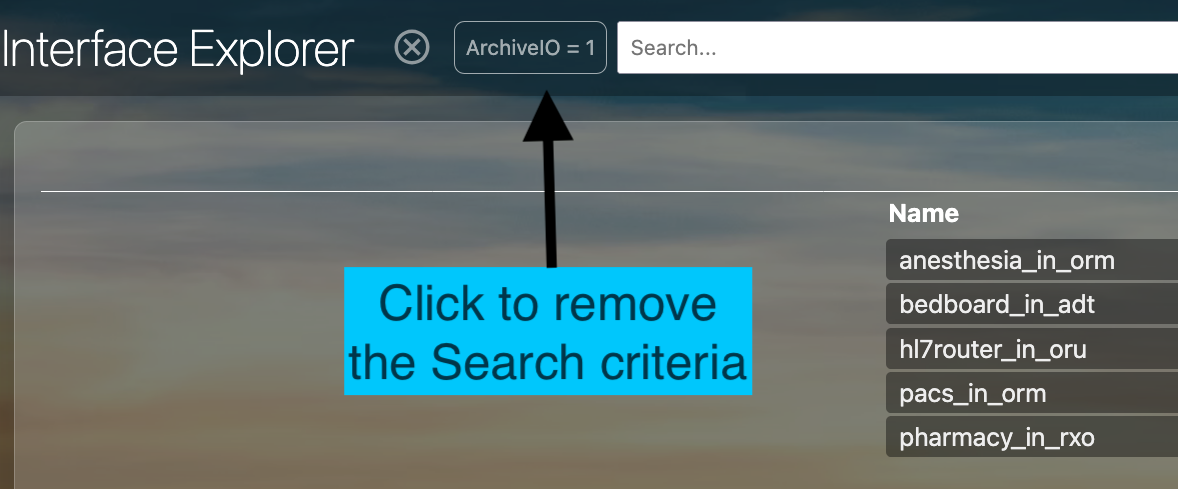
Clicking on a Search criteria, will remove that criteria from the filtering logic. Clicking the X will remove all criteria.
Showing Connections
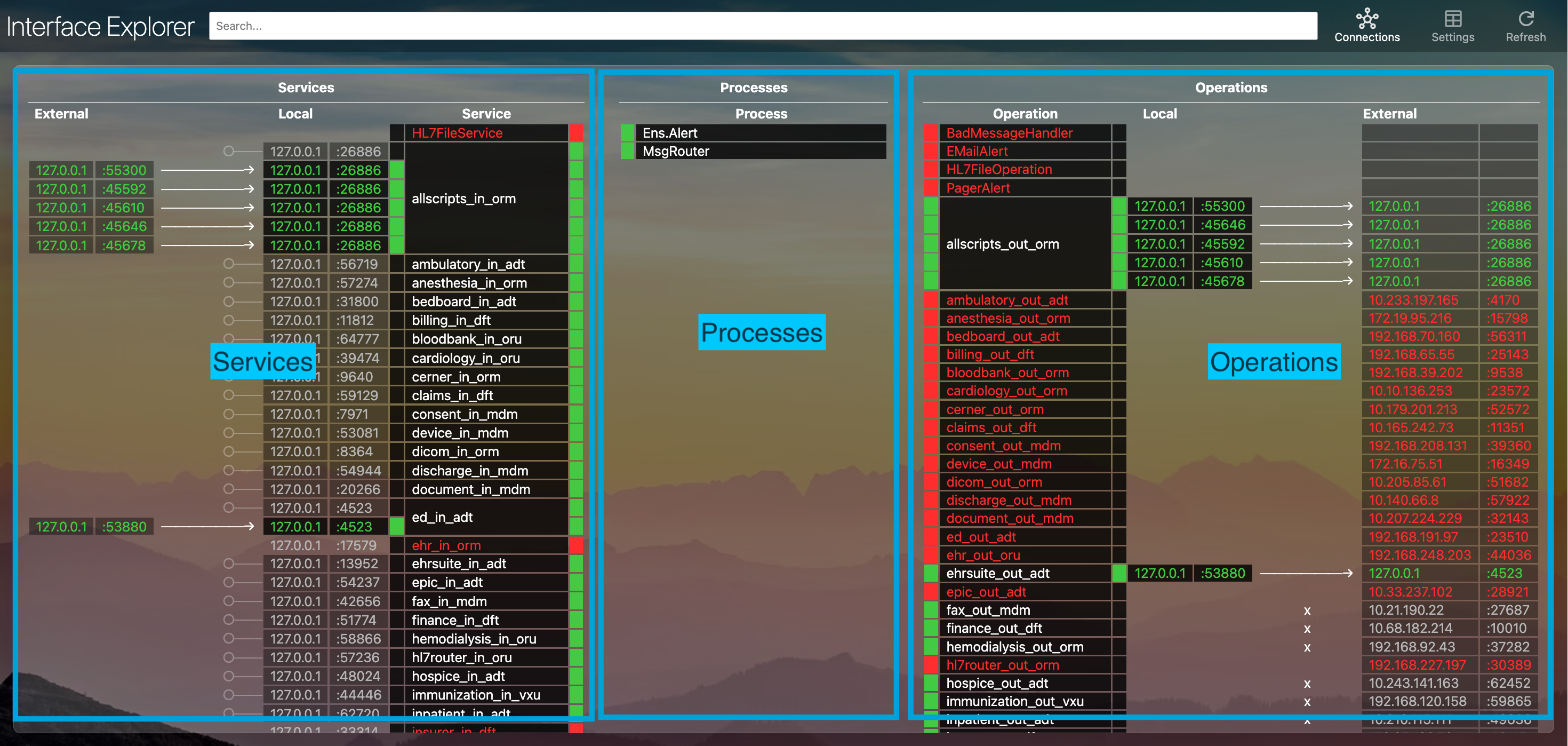
On the Connections view, you can monitor and view the various connections that your interfaces are making to external systems.
On the left side of the view are incoming connections to services. On the right side of the view are the outgoing connections from operations. Processes are listed in the middle.
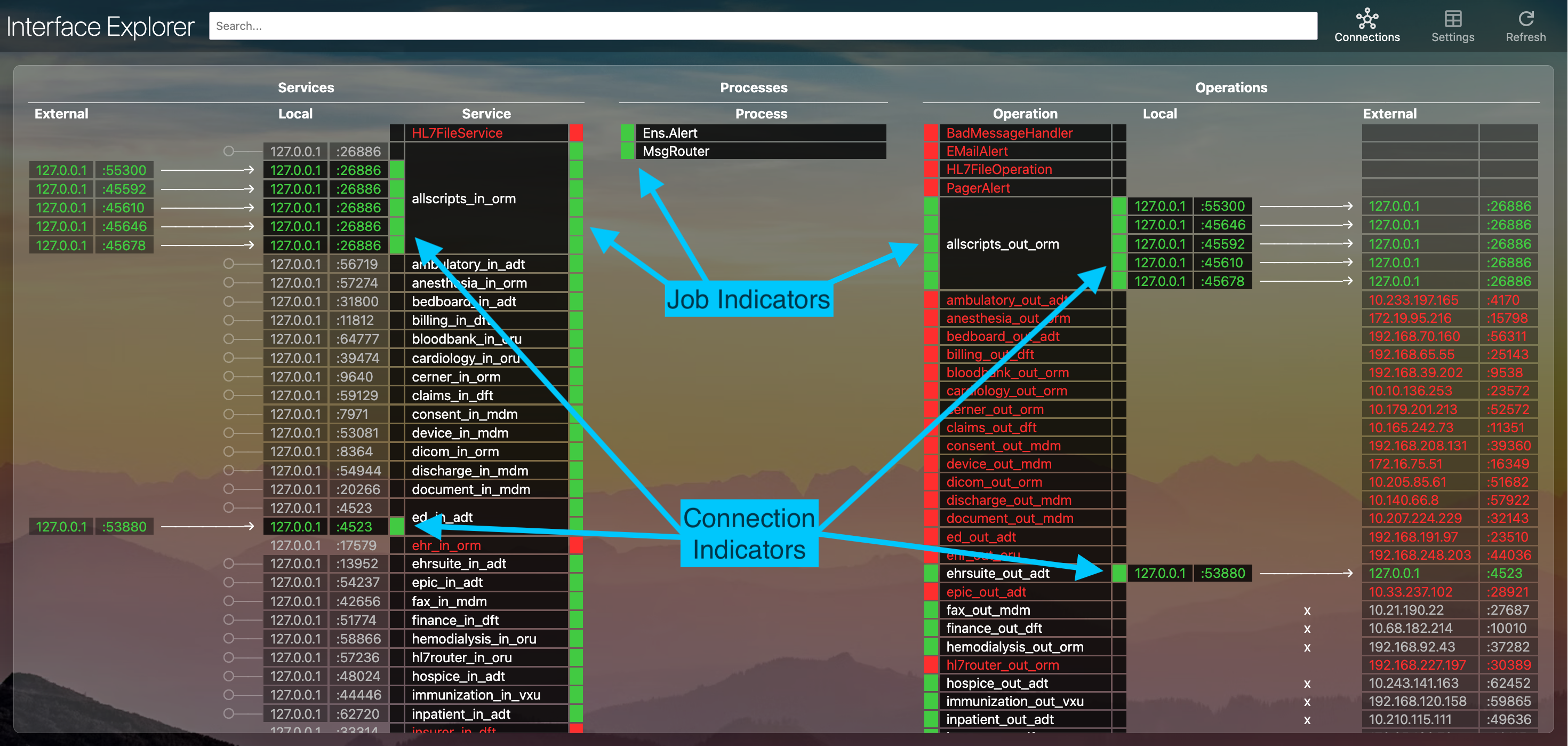
Each service and operation have two colored indicators for status: 1) job indicator (is the interface enabled?) and 2) connection indicator (is the connection established?).
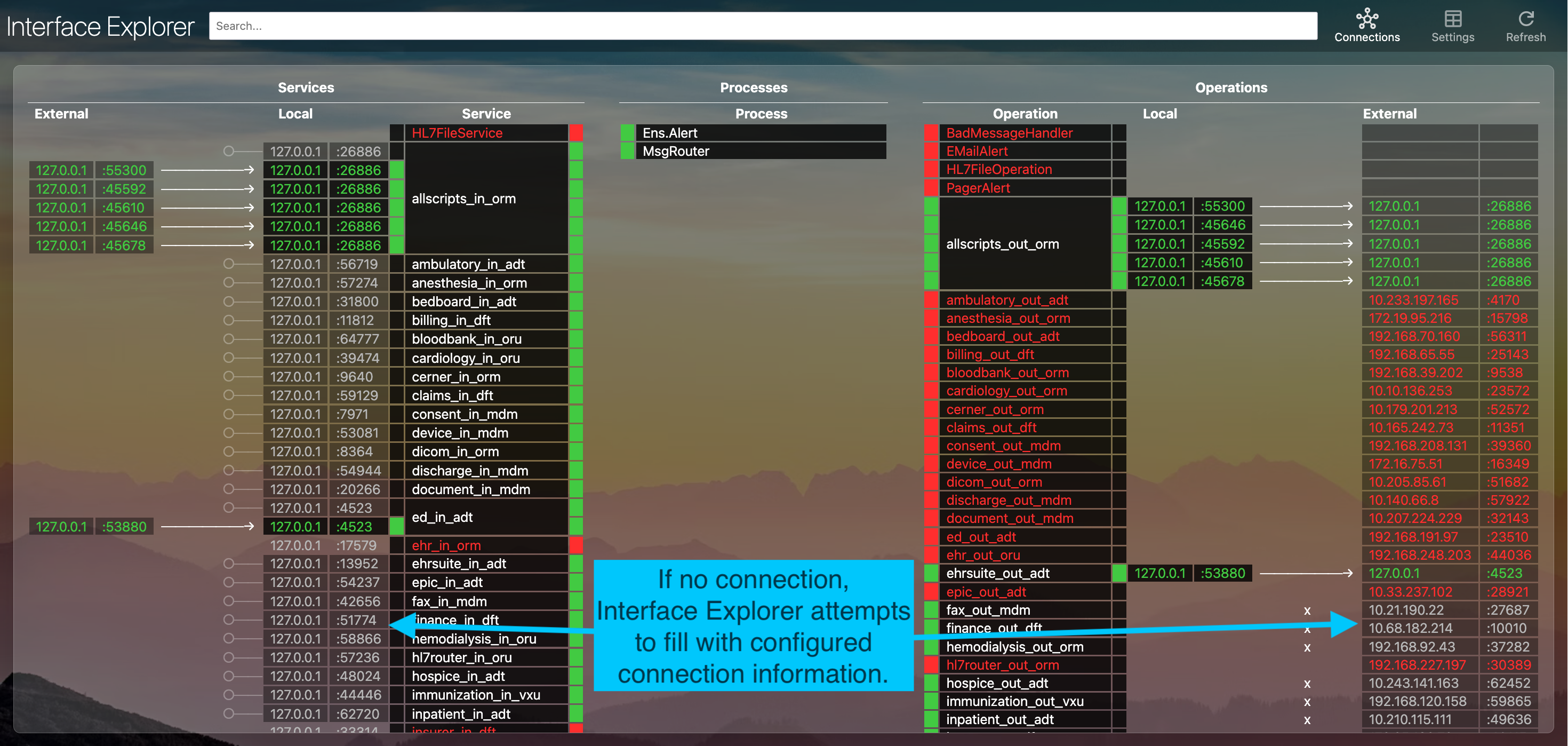
If an interface does not have an established connection, Interface Explorer attempts to fill in the information with configured host and ports.
The connection information refreshes every 15 seconds, but if you need to trigger a manual refresh, click the Refresh button at the top-right.
Settings Queries
Interface Explorer's search bar allows you to filter interfaces by specific criteria, regular expressions, or simple string matching.
Regular Expressions
If the search query has the form /regex pattern/flags, the provided regular expression will be used to match against setting name, setting value, and the combined value of setting=value.
The flags part of the query is optional. These flags are passed to the javascript regular expression engine. See MDN: Advanced Searching with Flags.
| Query | Flags | Results | Notes |
|---|---|---|---|
/Port/ |
Matches settings containing 'Port' in the name, such as 'Port' and 'SMTPPort'. | This is case-sensitive | |
/archiveio/i |
i | Matches 'ArchiveIO' settings. | This is NOT case-sensitive, since the 'i' flag was provided. |
/archiveio=1/i |
i | Matches 'ArchiveIO' settings where the value is '1'. | This is NOT case-sensitive, since the 'i' flag was provided. |
/192.168/ |
Matches any settings where the value matches '192.168'. | This is case-sensitive, since no flags were provided. |
Setting Expressions
If the search query has the form settingName operator value, then the query attempts to match settings based on the following operators:
| Operator | Description |
|---|---|
= (or ==) |
Equal To |
!= |
Not Equal To |
> |
Greater Than |
>= |
Greater Than or Equal To |
< |
Less Than |
<= |
Less Than or Equal To |
~ |
Matches Regular Expression |
!~ |
Does NOT Match Regular Expression |
like OR includes OR contains |
Does the setting include the given string (case must match) |
starts with OR startswith OR starts |
Does the setting start with the given string (case must match) |
ends with OR endswith OR ends |
Does the setting end with the given string (case must match) |
Simple String Matching
If the search query does not match either the regular expression pattern or the setting operator value pattern, then simple string matching is performed.
If the setting name or setting value match (case-insensitive) the given search string, then the interface matches and is shown in the results.
Multiple Queries
As you perform searches, to the left of the search bar, your list of active queries will be displayed. As you add additional queries, the results from the previous queries will be further filtered by your new queries.
For example, if you want all operations that are disabled, run the following queries:
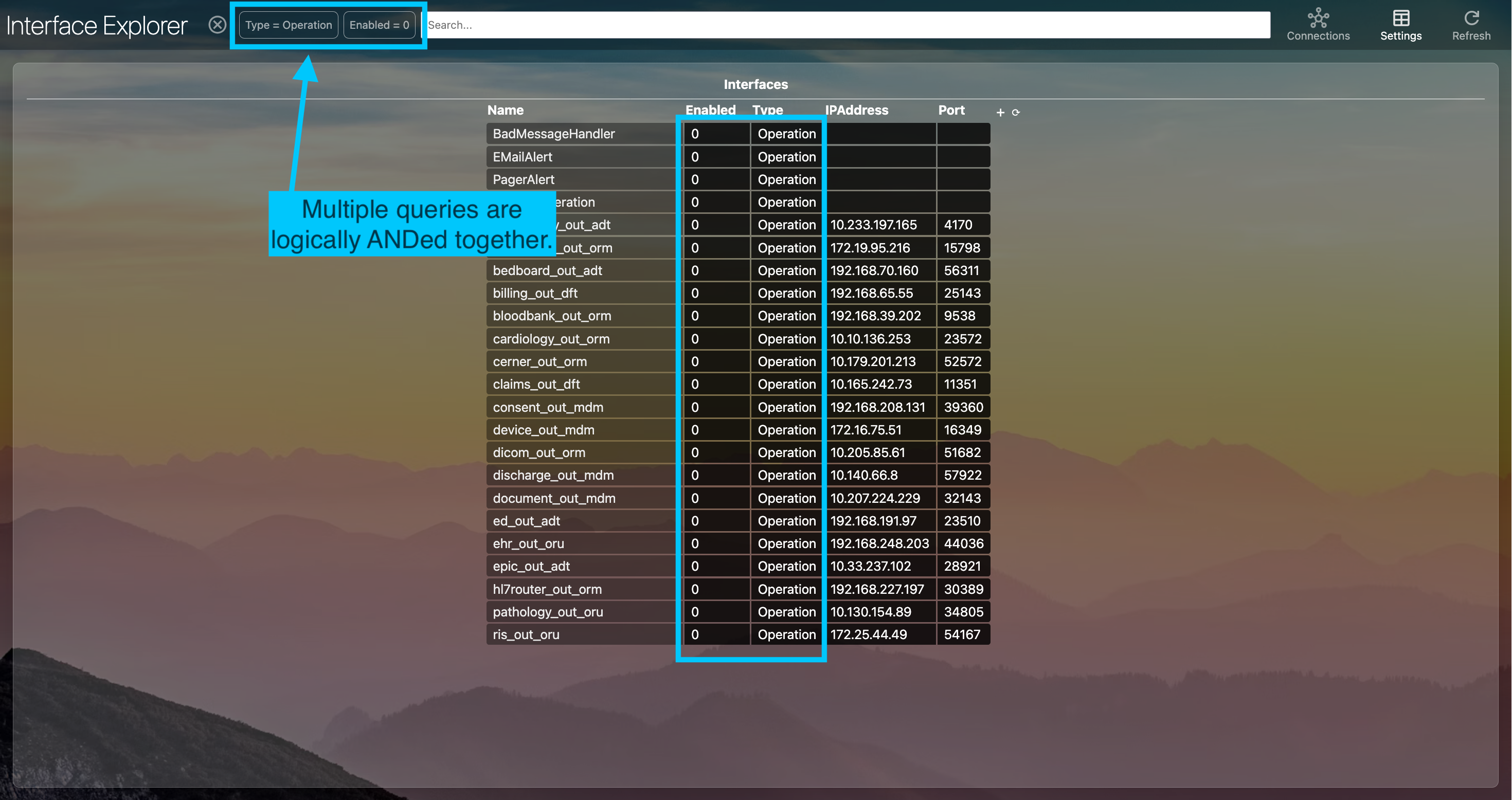
If you would like to remove any query from the search, just click on the associated query to the left of the search bar. The x button to the left of the search bar will clear all current queries.
Last checked by moderator
19 Jan, 2026, Works
Made with
Install
 zpm install interface-explorer
  download archive
 Version
0.1.029 Nov, 2025
Ideas to the app
Category
IntegrationWorks with
EnsembleInterSystems IRISFirst published
29 Nov, 2025Last edited
29 Nov, 2025