
© 2026 InterSystems Corporation. All rights reserved.Privacy & TermsGuaranteeSection 508Contest Terms


SQLgateway-migration-mysql-IRIS 

Community Project
This project is maintained by its author and is not officially supported by InterSystems. For technical support, please contact the project developer.
This project is maintained by its author and is not officially supported by InterSystems. For technical support, please contact the project developer.
5
1 reviews
0
Awards
63
Views
0
IPM installs
 0
0 Add to bundle
Details
Releases (1)
Reviews (1)
Issues
Articles (2)
straight IRIS with JDBC driver as only external part
What's new in this version
Initial Release
SQLgateway-migration-mysql-IRIS
Sample repository to show how to migrate from mysql to InterSystems IRIS
using SQLgateway in difference to using an external tool as DBeaver or CloudBeaver or similar.
Warning
This is just JDBC/Java and IRIS with ISOS and SQL
- no AI, no Python, no other magic
Credits
Git>Hub package migration-mysql-iris
provided by YURI MARX PEREIRA GOMES
- Special thanks as this was an excellent base to start off.
And the official documentation on SQLgateway
Prerequisites
Make sure you have git and Docker desktop installed.
Installation
Clone/git pull the repo into any local directory
git https://github.com/r-cemper/SQLgateway-migration-mysql-IRIS.git
- Build
docker-compose build
- Run it in foreground. Sometimes container start is slower than estimated.
docker-compose up
- Wait for confirmation from your containers container: ready to accept connections
- Connection to mysql:
- host: container mysql
- database: db
- port: 3306
- username: user
- password: password
- Connection to IRIS:
- host: localhost
- namespace: user
- port: 41773
- username: _SYSTEM
- password: SYS
- SQLgateway
is installed during Docker build and the required
jdbcdriver for Linux is included in this repo
In order to make this demo faster, size of tables to migrate have been shrinked a bit.
How to test
SMP is available here
http://localhost:42773/csp/sys/UtilHome.csp
All migration actions can be executed directly from SMP.
-
Verify the gateway connection in
SMP> Administration> Configuration> Connectivity> SqlGateway_Configuration
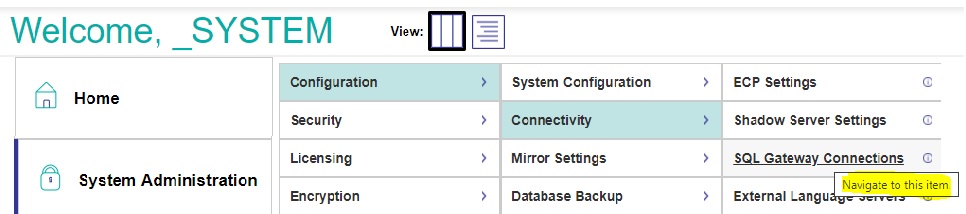
- To test Connection click edit for cnection mysql
- verify Connection successful
- Be patient at this point. Some DB containers take quite some time to talk to you.
wait a little bit, reload the page in browser and try the test again.
-
Identifying the source tables. In SMP > Change to Namespace USER
then step to SMP >Explorers >SQL >Wizards > Data Migration

-
Set required import parameters
- Destination Namespace
- Type = TABLE
- Select a SQL Gateway connection: = mysql ; now the first connection is established and you select
- Schema = [null schema]
- Tables to migrate = all
- Identify target but change schema to be OEX compatible from public to dc_public
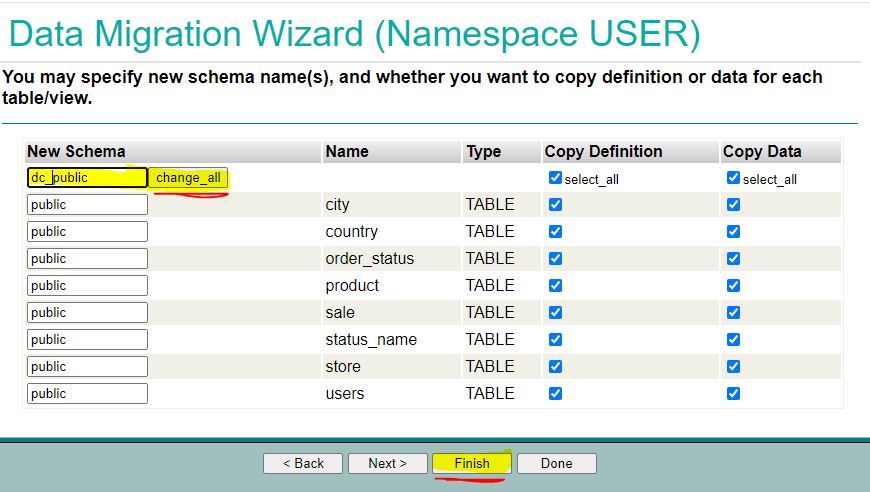
- don’t forget to click change all
- we migrate Definitions and Data so both sides are selected
-
Skipping special setting we use defaults we start the task in background

-
Now we check the results and see everything was working without Errors
You might see errors if tables depend on content not yet migrated.
And wait for completions until the status shows Done -
We terminate the Migration Wizard and return to normal table view filtered by dc*
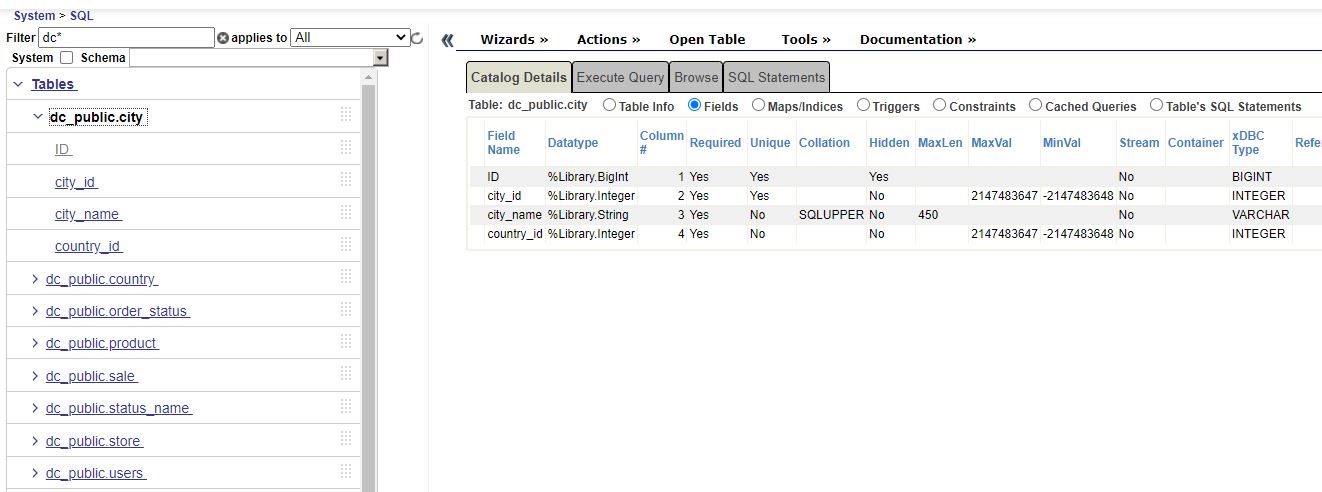
All 8 tables are visible and show meaningful columns -
Selecting a table and clicking on OpenTable shows reasonable contents
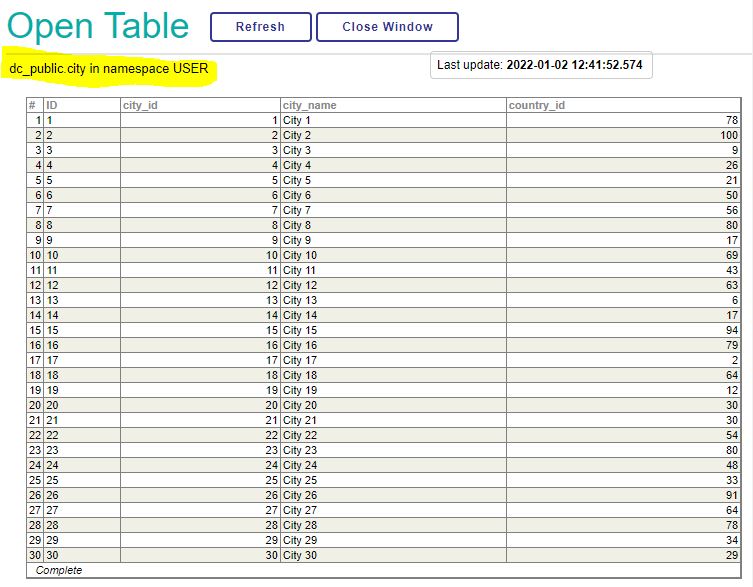
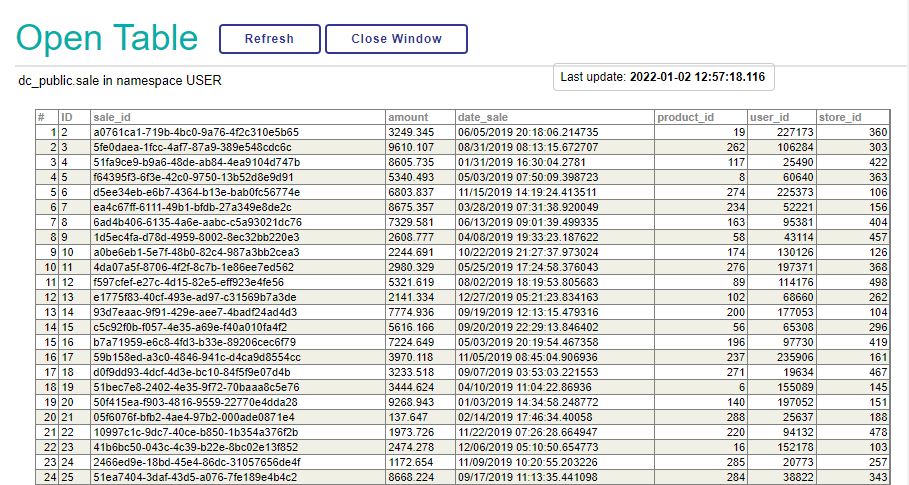
-
A look into the related generated Class Defnitions confirms the result and successful completion.
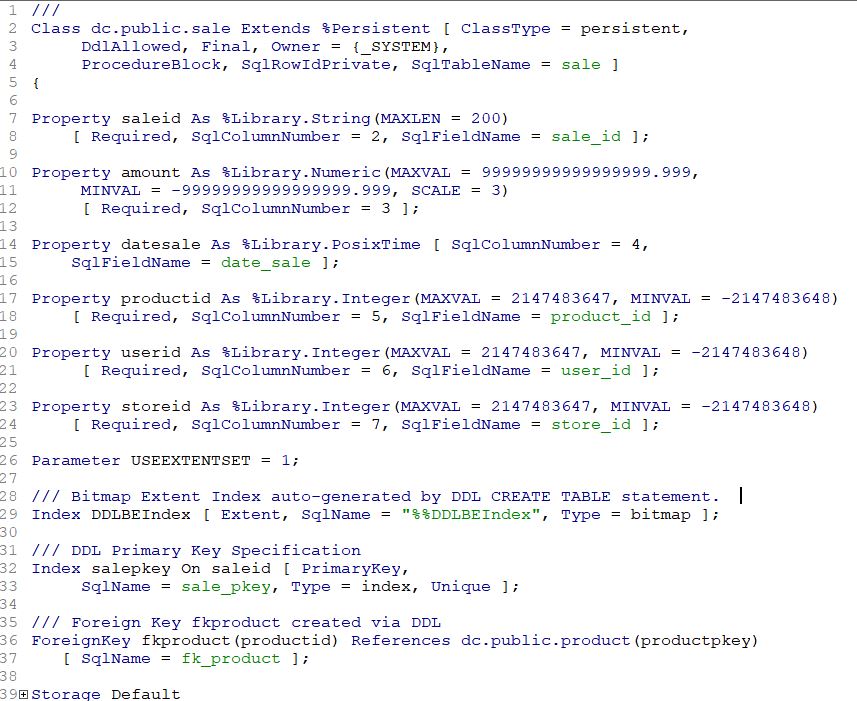
Last checked by moderator
29 Aug, 2026, Works
Checked on RIS for UNIX (Ubuntu Server LTS for x86-64 Containers) 2026.1 (Build 234U) Fri Mar 27 2026 14:07:14 EDT
Made with
Version
1.0.003 Jul, 2026
Category
Technology ExampleWorks with
InterSystems IRISInterSystems IRIS for HealthFirst published
03 Jul, 2026Last edited
13 Jul, 2026