
© 2026 InterSystems Corporation. All rights reserved.Privacy & TermsGuaranteeSection 508Contest Terms


SQLgateway-Magnificent-7 

Community Project
This project is maintained by its author and is not officially supported by InterSystems. For technical support, please contact the project developer.
This project is maintained by its author and is not officially supported by InterSystems. For technical support, please contact the project developer.
5
1 reviews
0
Awards
67
Views
0
IPM installs
 0
0 Add to bundle
Details
Releases (1)
Reviews (1)
Issues
Articles (1)
Run SQLgateway against 7 other DBs in parallel
What's new in this version
Initial Release
The Magnificent Seven
After composing examples of using SQLgateway for DB_Migration to IRIS
I couldn’t resist assembling all 7 around IRIS in a single package.
8 containers in 1 Docker-Compose felt like driving an 8-cylinder engine.
- sqlgateway-magnificent-7 > IRiS1
- 1 oracle21c
- 2 mysql
- 3 postgres
- 4 IBM db2
- 5 MSsql
- 6 Caché
- 7 IRIS2
Warning
This is just JDBC/Java and IRIS with ISOS and SQL
- no AI, no Python, no other magic
Credits
Special thanks for the test data to YURI MARX PEREIRA GOMES
This was an excellent base to start off.
And the official documentation on SQLgateway with more features.
Prerequisites
Make sure you have git and Docker desktop installed.
For the test with Caché, a valid Caqché license is required
Installation
Clone/git pull the repo into any local directory
git https://github.com/r-cemper/SQLgateway-Magnificent-7.git
- Build
docker-compose build
- Run it in foreground. Sometimes container start is slower than estimated.
docker-compose up
Downloading some GB of test data takes some time. Be patient.
As I like to follow the progress of Compose, I use
docker-compose up -d && docker-compose logs -f
This brings some movement to my screen and is less boring.
Demo data are generated or imported during compose.
-
Connection to IRIS:
- host: localhost
- namespace: user
- port: 41773
- username: _SYSTEM
- password: SYS
- SMP: http://localhost:42773/csp/sys/UtilHome.csp
-
SQLgateway
is installed during Docker build and all required
jdbcdriver are included and activated
How to test
SMP is available here
http://localhost:42773/csp/sys/UtilHome.csp
All migration actions can be executed directly from SMP.
-
Verify the gateway connection in
SMP> Administration> Configuration> Connectivity> SqlGateway_Configuration
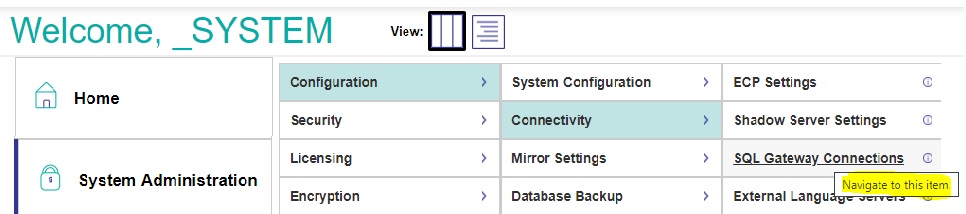
- To test Connection click edit
- Test connection and check Connection successful
- Be patient at this point. Sometimes DB containers take quite some time to talk to you.
Wait a little bit, reload the page in browser and try the test again.
Hint:
Also my Docker Desktop seemed to be challenged by 8 starts in 1 compose.
Typically, MSsql never completes its initial setup. No sign why
Manual restart of the failing container fixed my problem:
A missing Cache.Key requires rebuilding the Cache image or manually adding the license.docker restart mssql
-
Identifying the source tables. In SMP > Change to Namespace USER
then step to SMP >Explorers >SQL >Wizards > Data Migration

-
Set required import parameters
- Destination Namespace = USER
- Type = TABLE
- Select ay SQL Gateway connection
- and next select a Schema from source
- Tables to migrate: as offered
-
Identifying new targets is possible, but may cause conflicts in cross-references
This is one key to success:
Tables get listed alphabetically not by logical dependency or sequence.
This could cause errors. -
Skipping special settings, we use defaults to start the task in background

-
Now check the results and see if everything was working without errors
You might see errors if tables depend on content not yet migrated.
And wait for completions until the status shows Done

-
We terminate the Migration Wizard and return to the normal table view
All tables are visible and show meaningful columns and contents -
Selecting a table and clicking on OpenTable shows reasonable contents
-
A look into the related generated Class Definitions confirms the result and successful completion.
Last checked by moderator
10 Jul, 2026, Works
Made with
Version
1.0.009 Jul, 2026
Category
Technology ExampleWorks with
InterSystems IRISInterSystems IRIS for HealthFirst published
09 Jul, 2026Last edited
13 Jul, 2026